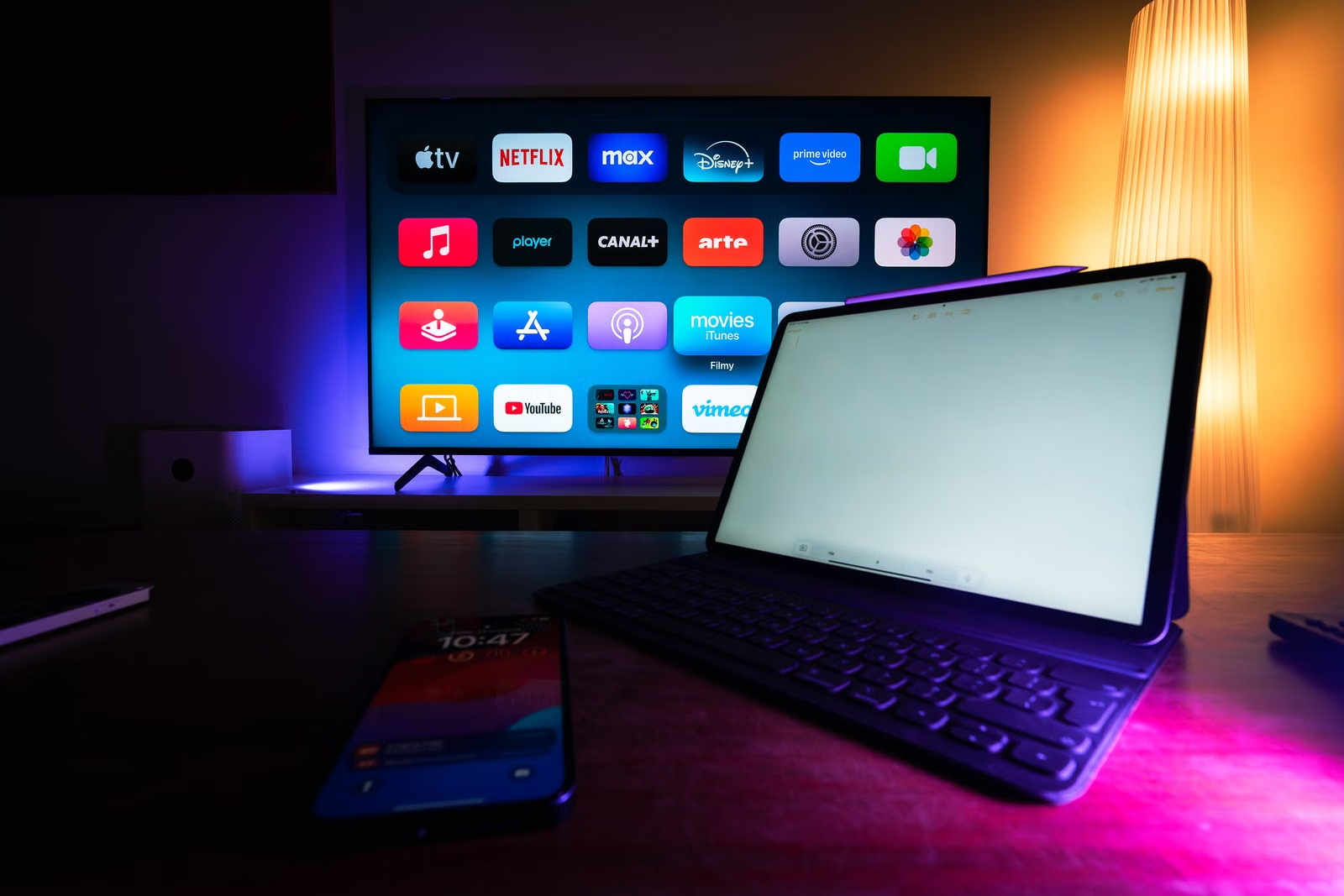
IPTV is changing how people access television through an internet connection. Instead of relying exclusively on cable or satellite equipment, you can watch supported television content using compatible streaming devices and applications.
If you're new to internet-based television, getting started might seem complicated. Fortunately, the basic setup process is often straightforward.
In this step-by-step guide, you'll learn how IPTV works, which devices you can use, how to configure a streaming application, and how to troubleshoot common problems.
Whether you own a Samsung Smart TV, LG television, Amazon Fire TV Stick, or Android TV device, this guide will help you understand the essentials.
What Is IPTV and How Does It Work?
IPTV stands for Internet Protocol Television. It is a technology that delivers television programming through internet protocol networks rather than traditional broadcast methods.
With compatible software and an authorized content source, viewers can access live television and other supported programming through an internet connection.
Unlike traditional cable television, internet-based streaming does not always require a dedicated cable receiver.
How IPTV Streaming Works
The basic process involves four components:
- Internet connection: Your home network transfers streaming data.
- Compatible device: A Smart TV, streaming stick, computer, or mobile device displays the content.
- Streaming application: Software provides the interface for browsing and playing content.
- Authorized service: A provider supplies access to the programming included in your subscription.
When you select a channel, the application requests the corresponding stream from the service.
The video is then delivered through your network and displayed on your screen.
Streaming performance depends on several factors, including connection quality, device capabilities, server performance, and the selected video resolution.
IPTV vs. Traditional Cable TV
| Feature | IPTV | Traditional Cable TV |
|---|---|---|
| Delivery method | Internet protocol network | Cable television network |
| Internet required | Usually yes | Not necessarily |
| Supported devices | Depends on service and app | Usually cable-compatible equipment |
| Installation | Often software-based | May require physical equipment |
| Channel availability | Depends on provider and rights | Depends on cable package |
| Picture quality | Depends on source and connection | Depends on provider and equipment |
Neither technology automatically guarantees better picture quality or reliability.
Your experience depends on the service, hardware, and connection you use.
Step 1: Check Your Internet Connection
Before installing any streaming application, make sure your internet connection is suitable for video playback.
A stable connection is particularly important when watching live programming.
Recommended Internet Speeds
The following figures are practical starting points, not universal requirements.
| Streaming quality | Suggested download speed |
|---|---|
| Standard Definition (SD) | 3–5 Mbps |
| High Definition (HD) | 5–10 Mbps |
| Full HD (1080p) | 10–15 Mbps |
| Ultra HD (4K) | 25 Mbps or more |
Actual bandwidth requirements vary depending on compression, frame rate, and the streaming provider.
If several people use your home network simultaneously, you may need additional bandwidth.
How to Test Your Connection
Follow these steps:
- Connect your television or streaming device to your home network.
- Open a browser on a device using the same connection.
- Visit Speedtest by Ookla.
- Run a download speed test.
- Compare the results with your intended streaming resolution.
For a more reliable connection, consider using Ethernet when your device supports it.
If you prefer Wi-Fi, position your router where the signal can reach your television without major obstacles.
Step 2: Choose a Compatible IPTV Device
One advantage of internet television is the range of hardware that may support it.
However, compatibility depends on your chosen streaming application and operating system.
Samsung and LG Smart TVs
Many Samsung and LG televisions support downloadable media applications through their respective app stores.
Available applications vary by model, operating system, and country.
To check compatibility:
- Turn on your Smart TV.
- Connect it to the internet.
- Open the television's application store.
- Search for a compatible streaming player.
- Review the application's description and supported formats.
Some applications require a separate activation fee.
An app activation does not automatically include television channels or a content subscription.
Amazon Fire TV Stick
Amazon Fire TV devices are popular streaming options because they connect directly to a television's HDMI port.
To prepare your device:
- Connect the Fire TV Stick to your television.
- Connect the supplied power equipment.
- Select the correct HDMI input.
- Complete the device's initial setup.
- Connect to Wi-Fi.
- Search the Amazon Appstore for a compatible streaming application.
Only install applications from sources you trust.
Avoid downloading unfamiliar installation files from unverified websites.
Android TV and Google TV
Android TV and Google TV devices provide access to various media applications.
Examples include compatible Smart TVs and dedicated streaming boxes.
Open Google Play, search for a suitable player, and confirm that it supports the format provided by your authorized service.
Smartphones, Tablets, and Computers
You may also be able to watch supported programming on:
- Android smartphones and tablets
- iPhones and iPads
- Windows computers
- Mac computers
- Compatible web browsers
Some services offer dedicated applications, while others require third-party players.
Always check the service's official compatibility instructions.
Step 3: Choose an IPTV Service Carefully
Selecting a suitable provider is an important part of the setup process.
Not every service offers the same device compatibility, content selection, or customer support.
Before subscribing, evaluate the following:
- Content licensing: Confirm that the provider is authorized to distribute the programming you want.
- Device compatibility: Make sure your preferred application and hardware are supported.
- Subscription terms: Understand the billing period and renewal conditions.
- Customer support: Check how technical assistance is provided.
- Privacy and security: Review how account and payment information is handled.
- Cancellation policies: Understand the conditions before purchasing.
Be cautious of services advertising unrealistic guarantees or access to premium content without explaining their licensing.
For information about available options, explore the Lunex4KTV IPTV plans and subscriptions.
Review the plan details and confirm that the service meets your needs before making a decision.
Step 4: Install Your IPTV Streaming Application
Once your device and service are ready, the next step is installing a compatible player.
The exact instructions depend on your hardware.
Installing an IPTV App on a Smart TV
- Open your television's application store.
- Search for the player recommended by your service.
- Verify the application's publisher.
- Select Install.
- Wait until installation finishes.
- Launch the application.
- Review the available setup options.
Some players display a device identifier or activation screen when first opened.
Others allow you to enter account credentials directly.
Installing an App on Android TV
For Android TV or Google TV:
- Open the Google Play Store.
- Search for your chosen streaming player.
- Select the correct application.
- Tap Install.
- Open the application.
- Continue with the account configuration.
Keep your device software updated to reduce compatibility problems.
For more detailed device instructions, visit the Lunex4KTV IPTV installation guide.
Step 5: Configure Your IPTV Account
After installing your application, you must connect it to an authorized streaming source.
Depending on the service and player, you may receive an account login, playlist URL, or another supported configuration method.
Method 1: Username and Password
Some players support an account-based login method, often called Xtream Codes API compatibility.
Where supported, you may need:
- Server URL
- Username
- Password
To configure the application:
- Open the streaming player.
- Select the supported account login method.
- Enter the server address supplied by your provider.
- Enter your username and password.
- Save the configuration.
- Allow the application to load the available content.
Only enter credentials into applications you trust.
Never publish your login information or share screenshots containing account passwords.
Method 2: M3U Playlist
M3U is a playlist format that can reference media streams.
Some compatible applications allow you to import a playlist using a URL or file.
Follow these steps:
- Open your streaming application.
- Select Add Playlist or a similar option.
- Choose the M3U method.
- Enter the playlist URL supplied by your authorized provider.
- Save the playlist.
- Wait for the application to process the entries.
The exact menu names may differ.
An M3U playlist does not itself grant rights to access or redistribute copyrighted content.
Method 3: Device-Based Activation
Certain applications use a device identifier, such as a MAC address or application-specific ID.
Your provider or application may ask you to associate that identifier with an account.
Always use the application's official activation process.
Do not share sensitive device or account details publicly.
Step 6: Organize Your Channels and Streaming Settings
After your account is configured, spend a few minutes adjusting the application.
A well-organized interface makes everyday viewing easier.
Create a Favorites List
Many players allow you to save frequently watched channels.
If your application supports this feature:
- Open the channel list.
- Find a channel you watch regularly.
- Select the favorites icon.
- Repeat for additional channels.
- Open your favorites section to confirm the changes.
This can save time when browsing large channel collections.
Configure the Electronic Program Guide
An Electronic Program Guide, or EPG, displays scheduling information for supported channels.
Some providers include EPG data automatically.
Others may supply a separate guide URL.
If your player supports manual EPG configuration, enter only the information provided by your service.
Program information may be incomplete or unavailable for certain channels.
Adjust Video Playback Settings
Some applications allow you to change playback settings or select a different media player.
Useful options may include:
- Video resolution
- Audio track selection
- Subtitle preferences
- Hardware decoding
- Buffer settings
- Automatic playback
Start with the default settings.
Change one option at a time if you experience a specific problem.
Step 7: Fix Common IPTV Streaming Problems
Even with a correct installation, occasional technical issues can occur.
Many problems can be diagnosed without advanced technical knowledge.
Problem 1: IPTV Keeps Buffering
Buffering occurs when video playback pauses while additional data loads.
Possible causes include an unstable internet connection, network congestion, or problems with the content source.
Try these steps:
- Test your internet speed.
- Restart your router.
- Move closer to your Wi-Fi access point.
- Switch to Ethernet when possible.
- Close unnecessary background applications.
- Try a lower video resolution if supported.
If buffering affects only one channel, the problem may be related to that particular stream.
Problem 2: Channels Are Not Loading
If the application opens but no channels appear, check your configuration.
Verify that:
- Your account details are correct.
- Your subscription is active.
- Your playlist or server address is accurate.
- Your internet connection is working.
- Your application is up to date.
Restart the player after making changes.
If the issue continues, contact your service provider through its official support channel.
Problem 3: IPTV App Crashes or Freezes
Application crashes may result from software bugs, insufficient device memory, or compatibility issues.
Try restarting your device and checking for updates.
On supported devices, clearing the application's cache may help.
Avoid deleting application data unless you have securely saved your configuration details.
Problem 4: Audio Works but Video Is Missing
This can happen when a device or application cannot decode a particular video format.
Check whether your player offers alternative decoding settings.
You can also test another authorized stream to determine whether the problem affects all content.
Step 8: Improve Your Streaming Experience
Once your setup is working, a few maintenance habits can improve reliability.
Keep Your Devices Updated
Install official operating system and application updates.
Updates may address security vulnerabilities, playback bugs, and compatibility issues.
Use a Reliable Home Network
For stationary televisions, wired Ethernet is often a useful choice.
If you use Wi-Fi, a strong 5 GHz or 6 GHz connection can help where supported, although coverage depends on your home and router.
Protect Your Account
Use strong passwords when available and keep your credentials private.
Avoid unofficial applications that request unnecessary permissions.
Only access content that your provider is authorized to offer.
Review Your Subscription
Before renewing, check the current service terms, supported devices, and available content.
Subscription features can change over time.
Choosing a service that fits your actual viewing habits is more useful than focusing on large promotional channel counts.
Is IPTV Legal in the United States?
IPTV technology itself is legal in the United States.
The important distinction is whether the service has the necessary rights to distribute its programming.
Legitimate internet television platforms obtain appropriate permissions for the content they provide.
Unauthorized redistribution of copyrighted television channels, movies, or sporting events can violate copyright law.
Before using a service, verify its legitimacy and review the applicable terms.
Using a streaming player does not automatically make an unauthorized content source legal.
Final Thoughts: Get Started With IPTV
Setting up IPTV does not have to be difficult.
With a compatible device, stable internet connection, suitable streaming application, and authorized content service, you can complete the basic installation in a few steps.
Remember to verify compatibility, protect your account information, and follow official setup instructions.
Ready to explore your options?
Visit the Lunex4KTV official website to learn more about the service, explore its features, and find the information you need before getting started.